









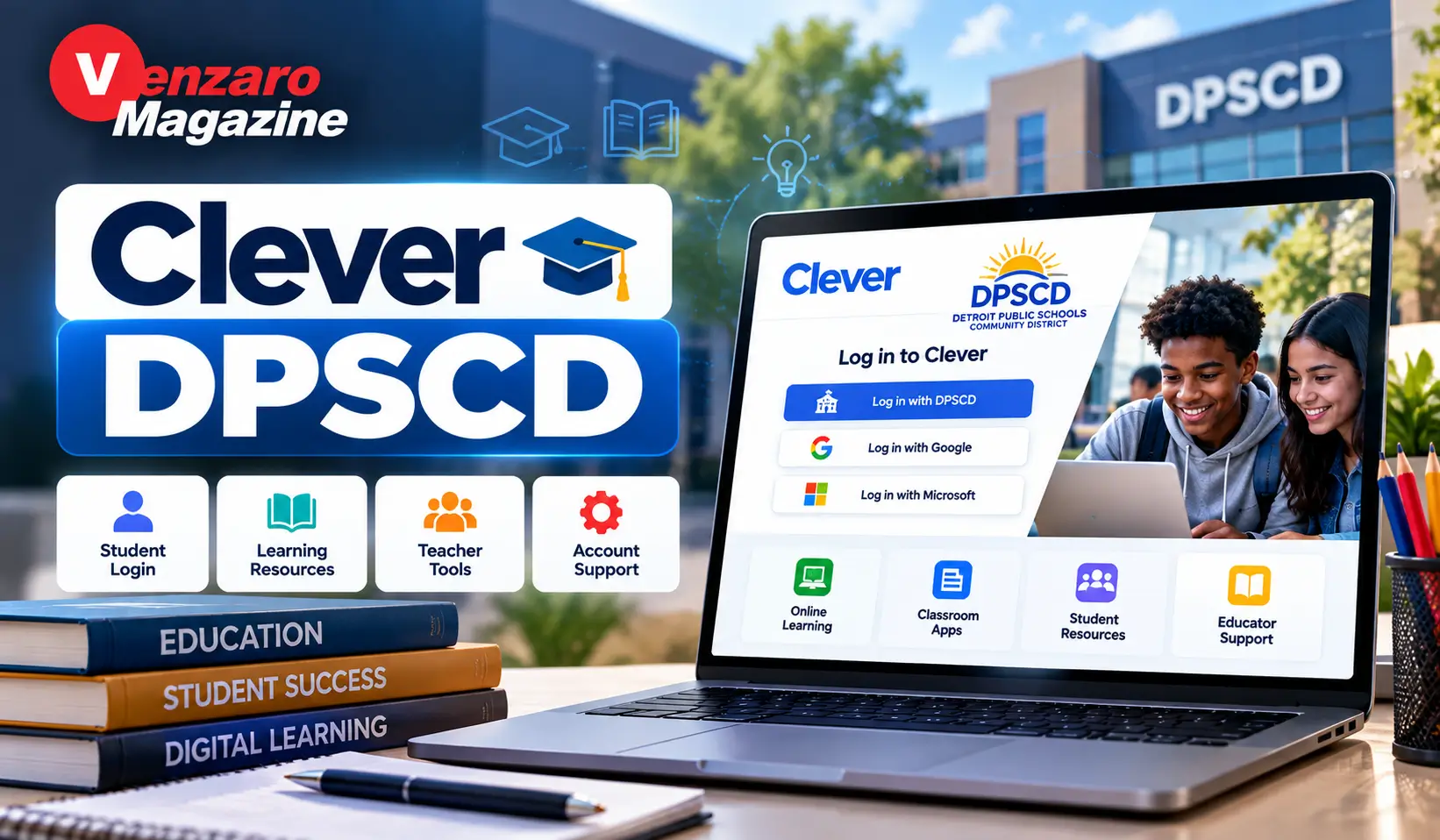
Classes can involve several digital tools before a student even starts the first assignment. One app may hold class meetings, another may contain practice activities, and another may provide lesson material. Clever DPSCD reduces that jumping around by giving Detroit Public Schools Community District students a central place to reach many of the digital resources assigned to them.
The important part is knowing which login option to use. Older guides still show login instructions that do not always match the current Clever page, so following the live DPSCD portal is more useful than relying on an old screenshot.
What Is Clever DPSCD?
Clever DPSCD is the Clever access point used by Detroit Public Schools Community District.
Clever itself is an education technology platform that schools and districts can use to connect students with digital learning applications. DPSCD uses it as a gateway to learning tools students need during school and at home.
The current official Clever page identifies the district as Detroit Public Schools Community District and presents dedicated login options for district users.
Instead of separately hunting down every classroom application, a student can begin with Clever and open available resources from the dashboard after signing in.
Current Clever DPSCD Login Options
This is one area where older web guides can cause unnecessary confusion.
At the time of this review, the official DPSCD Clever page shows these main choices:
- DPSCD Microsoft Login
- NON-DPSCD Staff
- Clever Badge
The exact options can change as district authentication systems are updated, so the live Clever page should always take priority over an older tutorial.
That matters because several third-party articles still instruct users to look specifically for an Active Directory button. Some older DPSCD materials also use that terminology.
The basic purpose is the same—authenticate with the district account—but the visible button and sign-in flow may change.
How to Access Clever DPSCD
Students should begin from the district-specific Clever page rather than a random login page found through an advertisement or unrelated website.
The official DPSCD Clever portal is associated with:
clever.com/in/dpscd
Once there, confirm that the page says Detroit Public Schools Community District.
Select the login method provided for your account. Current district users may see the DPSCD Microsoft Login option. Younger students or classrooms using Clever Badges may be able to sign in through the badge option instead.
After successful authentication, Clever opens the student’s available dashboard.
The exact apps shown can differ depending on grade, school, class enrollment and district configuration.
Why Clever Is Useful Inside DPSCD
A student can have a surprising number of school accounts.
Without a central access point, the morning routine could involve finding separate links for Teams, a math platform, reading software, testing tools and other classroom resources.
Clever reduces some of that friction.
The student signs into the district environment and then uses the available application tiles instead of remembering a different route for every platform.
DPSCD’s current student support page specifically tells students to open Microsoft Teams from Clever, showing how the portal functions as an entry point for other district learning services.
Clever DPSCD Is Not the Same as Microsoft Teams
This causes confusion for some students because both can appear in the same workflow.
Clever is primarily the access point.
Microsoft Teams is an application students may open through Clever.
DPSCD’s support guidance tells students to begin by opening Teams from Clever and then use the Teams interface for their classes, meetings and calendar.
A simple way to remember the difference is:
Clever gets you to the app.
Teams is where certain class activity happens.
This distinction also helps when troubleshooting.
If Clever will not accept the student’s district account, the issue is different from Clever working normally while Teams fails to load.
Clever DPSCD and PowerSchool Are Different Too
PowerSchool has a different purpose.
Clever primarily helps students reach digital learning applications.
PowerSchool is generally associated with student information such as academic records and school information.
Students and families may use both systems during the school year, but they should not assume that the Clever dashboard and PowerSchool account perform the same job.
This distinction becomes especially useful when someone is trying to find grades but keeps looking inside the wrong platform.
What Can Students Find After Signing In?
There is no single universal Clever dashboard that every DPSCD student sees.
Applications can depend on the student’s grade, courses and school.
DPSCD materials show Clever being used to reach learning applications, while district support specifically references Microsoft Teams and apps such as i-Ready, CPM and LearnZillion.
A student might therefore see tools for areas such as:
- classroom communication
- mathematics
- reading
- assignments
- practice activities
- digital textbooks
- assessment
- educational videos
- career or academic planning
The important point is not to compare one student’s dashboard with another student’s dashboard and assume something is broken simply because the tiles differ.
Enrollment controls much of what appears.
What Is a Clever Badge?
A Clever Badge offers another way to sign in.
Instead of manually typing credentials, a student can use a school-issued badge through the supported Clever sign-in process.
The current DPSCD Clever page still displays a Badge option.
Badges can be particularly convenient for younger students who may find long usernames difficult to enter correctly.
A badge should be treated like other school access information. Students should avoid posting a clear image of it publicly or sharing it with people who do not need access.
Clever DPSCD Not Logging In? Start With the Simple Checks
Login problems often feel bigger than they are.
Before changing passwords or device settings, check the basics.
First, make sure the page identifies Detroit Public Schools Community District.
Then make sure the correct login option has been selected.
Check that the username was entered without accidental spaces.
If the browser automatically inserted saved credentials, verify that they belong to the correct student.
Also check Caps Lock and keyboard language settings.
If another family member previously used the same browser for school, signing out of Microsoft or Clever accounts before trying again can prevent account-mixing problems.
These simple checks solve a surprising number of login failures.
The Portal Opens but an App Is Missing
This is a different problem from a failed login.
If Clever itself opens correctly but an expected application is absent, repeatedly resetting the browser may not solve anything.
The student’s class enrollment or app assignment may need attention.
DPSCD support advises students to contact school staff when they believe they are missing access to a class, and learning-app issues may need help from a teacher or district support.
Explain the problem precisely.
Instead of saying:
“Clever doesn’t work.”
Say:
“I can sign into Clever, but the app used in my math class is not on my dashboard.”
That gives support staff a much better starting point.
Clever Works but Microsoft Teams Does Not
Again, separate the two systems.
If Clever loads and the Teams tile opens, authentication through Clever may already be working.
The remaining issue could be inside Teams.
DPSCD’s student support guidance tells students to open Teams from Clever and explains where students can locate their Teams and calendar. It also provides district technology-support guidance for account or application problems.
Try signing out of Teams completely, then reopen it from the Clever dashboard.
On shared devices, check that Teams did not automatically sign into another Microsoft account.
What to Do When the Student Account Is Locked
Repeatedly trying random passwords is not a good strategy.
DPSCD’s student-support information says families should first double-check that the correct login credentials are being entered. If a student remains locked out, the district directs users toward DPSCD support channels.
Using official support is especially important for student accounts because the district can verify the student’s identity and current account status.
A third-party website cannot safely reset a DPSCD school account.
Avoid Old Login Guides
Search results for Clever DPSCD include several guides written in 2024, 2025 and earlier.
That does not automatically make them useless.
The problem appears when an old article presents a particular login button as though it will always stay the same.
For example, older DPSCD material and third-party guides frequently mention Active Directory, while the current Clever DPSCD page displays DPSCD Microsoft Login.
Authentication systems evolve.
A current guide therefore needs to explain the function of the login rather than depend completely on one screenshot or button label.
Parents Should Know This About Clever
Parents commonly help younger students reach Clever from home, but the portal is primarily tied to the student’s school account.
A parent does not necessarily need to become the person who controls every student’s login.
The better approach is to help the child reach the correct official page, use their district-issued access method, and contact the school when something genuinely appears incorrect.
DPSCD’s Virtual School parent resources include guidance for student passwords, Clever, Teams, PowerSchool and other learning platforms, which shows that the district expects families to interact with several systems rather than one universal parent portal.
Using Clever on a Shared Computer
Shared family computers create a specific problem: account confusion.
One child signs into Microsoft.
Another child opens Clever later.
The browser quietly remembers the first Microsoft session.
Now the second student appears to have missing apps or the wrong profile.
Before assuming Clever is broken, sign out of existing school and Microsoft accounts.
Then reopen the DPSCD Clever page and authenticate with the correct student’s account.
A separate browser profile for each student can make this much easier when several children use the same computer.
Using Clever DPSCD on a Phone or Tablet
Clever access is not limited to a classroom computer.
Students may access school resources through supported mobile devices, although the experience depends on the specific learning application.
Some apps work directly in the browser.
Others may redirect the student to an installed mobile application.
If an app repeatedly opens the wrong account, check both the browser session and the account signed into the mobile app itself.
Mobile devices often keep multiple login sessions active, which can make account problems harder to notice than on a school Chromebook or desktop.
Why Bookmarks Can Save Time
Students do not need to search Google for the Clever DPSCD portal every morning.
Once the correct district page has been verified, bookmarking it reduces the chance of landing on a third-party guide instead of the actual login screen.
A bookmark is particularly useful for younger students.
Give the bookmark a simple name such as:
DPSCD Clever
That is easier to recognize than a long URL.
Do Not Enter School Credentials Into Random Websites
Search engines often show informational articles alongside official login pages.
An article explaining Clever can be useful.
It should not ask for the student’s DPSCD password.
School credentials should be entered only into the expected official authentication flow.
Before signing in, check the domain carefully.
For Clever access, the login page should be on Clever’s legitimate domain or an official district authentication service reached through the expected login flow.
If something feels unusual, close it and start again from the known district or Clever page.
What Students Should Do Before an Online Class
Five minutes of preparation can prevent an entire class from being spent troubleshooting.
Open Clever early.
Confirm that the correct student account is active.
Open Teams or the required learning app.
Check the class calendar or assignment.
Make sure headphones and microphone work if the lesson uses them.
If something fails, there is still time to contact a teacher before the class begins.
Where to Get Official DPSCD Clever Help
Technical support should match the type of problem.
If the student cannot access their district account, use DPSCD’s support route.
If Clever works but a particular learning application is unavailable, report that specific app problem to the teacher or appropriate district support channel.
DPSCD’s current student-support page says students locked out of their accounts can use the DPSCD Help Desk or Customer Care, and it gives separate guidance for learning-app issues.
That is more useful than following random password-reset instructions from an unrelated blog.
Clever DPSCD for Teachers
Teachers benefit from the same central-access idea, though staff accounts and permissions differ from student accounts.
A teacher may use Clever to reach district-approved instructional applications without manually maintaining separate access routes for every tool.
Teachers can also become the first point of contact when an application does not appear for a student.
That does not mean teachers personally control every technical permission.
It means they are often in the best position to confirm whether a student is supposed to have access in the first place.
Why the Clever Dashboard Can Change
Students sometimes become concerned when an app moves or disappears.
That does not always indicate a technical fault.
The district or school can change application availability.
A course can end.
A student can change classes.
A platform can be replaced.
A resource may only be licensed for particular grades.
The dashboard should therefore be treated as a live school workspace, not a fixed collection of permanent apps.
Clever DPSCD During School Breaks
Some Clever applications may remain useful even when regular classes are not in session.
DPSCD’s current Break Out & Explore page lists Clever-based activities that require a DPSCD login, showing that district digital resources can also support learning outside normal classroom assignments.
Availability still depends on the particular resource and district access rules.
Clever DPSCD FAQs
What is Clever DPSCD?
Clever DPSCD is the Clever access environment used by Detroit Public Schools Community District to connect students with district learning applications and resources. The official Clever page identifies the district directly.
What is the official Clever DPSCD login page?
The district-specific Clever route is associated with clever.com/in/dpscd. Users should confirm that Detroit Public Schools Community District appears on the login page before entering school credentials.
Which button should students use to log in?
The current Clever DPSCD page displays DPSCD Microsoft Login, along with options for non-DPSCD staff and Clever Badge access. The available options may change, so follow the current page rather than relying on an old screenshot.
Can students use Clever Badges?
The current DPSCD Clever page includes a Clever Badge option. Badge availability for an individual student depends on how their school or account is configured.
Is Microsoft Teams inside Clever DPSCD?
DPSCD support documentation instructs students to open Microsoft Teams from Clever, so Teams is one of the services that may be reached through the Clever environment.
What should I do if Clever opens but my learning app is missing?
Contact the teacher or school and explain which specific app is missing. A missing app can be related to enrollment or assignment rather than the Clever login itself.
What should I do if my DPSCD account is locked?
Check that the correct credentials are being entered and then use official DPSCD support if the account remains inaccessible. The district’s current student-support page provides Help Desk and Customer Care guidance.
Is Clever DPSCD the same as PowerSchool?
No. Clever primarily provides access to digital learning resources, while PowerSchool serves a different student-information function. DPSCD parent resources list Clever and PowerSchool separately.
Final Thoughts
Clever DPSCD works best when it is treated as the starting point rather than another school app students have to memorize.
Open the correct Detroit Public Schools Community District Clever page, use the login option currently shown for the account, and then move into the learning application needed for class.
The biggest mistake is following an old tutorial too literally. Button names, authentication systems and application tiles can change. The official portal and DPSCD’s current support information should take priority.
Once that distinction is clear, most Clever problems become easier to describe too: either the student cannot enter Clever, the account opens but an app is missing, or the application itself has a problem.
Knowing which of those three situations you are dealing with is often the fastest route to fixing it.
More Explore: Venzaro Magazine